SQL Console
SQL Console provides a dedicated environment for running ad hoc SQL statements against a session cluster. Unlike SQL Drafts, which are compiled into persistent Deployments, SQL Console files are designed for one-time operations that do not need to run continuously.
Overview
SQL Console lets you write and execute SQL scripts interactively within the Ververica Cloud console. Each SQL Console file is a script you can run immediately against a session cluster — no deployment configuration required.
SQL Console vs. SQL Draft:
| SQL Draft | SQL Console | |
|---|---|---|
| Output | Creates a persistent Deployment | Executes statements once in a session cluster |
| Use case | Continuous streaming or batch jobs | Ad hoc queries, DDL operations, data management |
| Execution | Deployed as a job | Runs directly in the session cluster |
Key Use Cases
- Run DDL statements to create, alter, or drop catalogs, databases, and tables.
- Query data with DQL statements for ad hoc exploration and validation.
- Insert or manipulate data with DML statements.
- Execute CALL commands — for example, to compact or manage Apache Paimon tables.
- Run
EXPLAINstatements to inspect execution plans and optimize performance.
Prerequisites
- A running session cluster in your workspace.
- VERA 1.0.6 or later is required to use CALL commands.
Create a SQL Console File
-
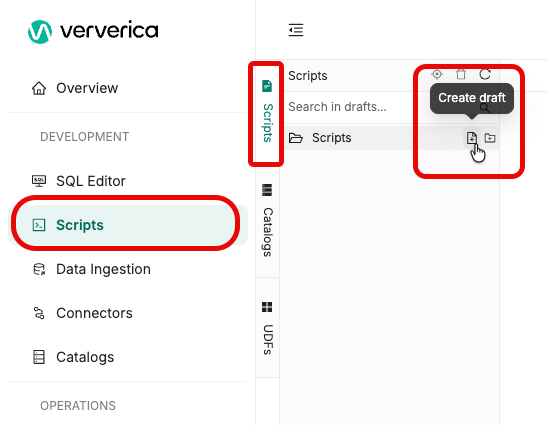
In the Console navigation pane, click Scripts.
-
Click the Create draft icon.
-
In the Create Script dialog, enter a name and select a location for the file.
-
Click Save.
The new file opens in the editor. SQL Console files are saved automatically every minute.
Write and Edit SQL Scripts
SQL Console files support the following statement types:
- DDL —
CREATE,ALTER,DROPstatements for catalogs, databases, and tables. - DML —
INSERT INTOand similar data manipulation statements. - DQL —
SELECTstatements for querying data. - CALL — commands for managing external systems such as Apache Paimon.
You can write multiple statements in a single file. Statements are separated by semicolons.
If DDL or DML statements are executed, they affect live metadata or data. Review your statements carefully before running them.
Execute a Script
Scripts run in batch mode by default.
Run the Entire Script
Click the Run button in the top-right corner of the editor. All statements in the file are executed sequentially.
Run Selected Statements
Select the statements you want to run in the editor. A Run button appears at the top-left of the selection. Click it to execute only the selected statements.
Switch to Streaming Mode
To run statements in streaming mode, add the following SET statement at the top of your script before the statements you want to execute:
SET 'execution.runtime-mode' = 'streaming';
View Results and Logs
After execution, results are displayed in the output panel below the editor:
- CALL commands — execution logs are shown.
- DDL statements — a success or failure message is shown.
- DQL statements — the query result set is shown.
Delete a SQL Console File
To delete a SQL Console file, right-click the file in the Scripts tab and select Delete.
You cannot delete a SQL Console file while it is in a running state. Wait for execution to complete before deleting.
Limitations
- SQL Console runs in a session cluster only. It cannot be deployed as a standalone Deployment.
- No deployment debugging, version history, or code structure view is available.
- CALL command support requires VERA 1.0.6 or later.
- DDL and DML statements affect live metadata or data immediately upon execution.